Table of Contents
Types of User Permissions
It's important to know that you can add users at different levels within ProfitWiser. Each level determines what a user has access to. There are three levels within ProfitWiser: account level, channel level, and platform level.
In ProfitWiser, there are three types of user permissions:
- View: Grants read-only access. Users can view data but cannot make changes.
- Edit: Grants permissions to modify settings and data within the assigned level.
- Admin: Grants full privileges, including the ability to add and link new users, accounts, channels, and platforms.

Account-Level User Permissions
- Log in at suite.profitwiser.com
- Click " Configuration" in the menu on the left .
- You'll see an overview of your accounts. Click " Edit" to the right of the account you want.
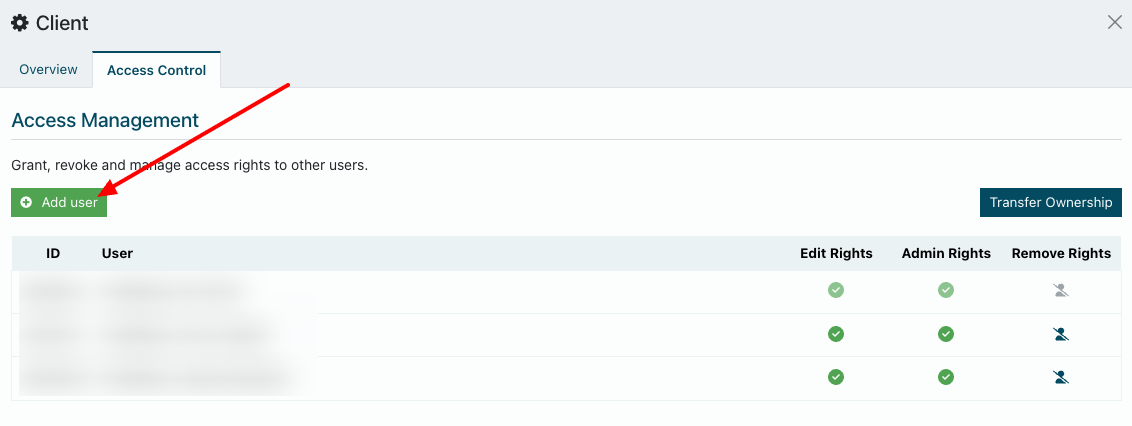
- A pop-up window will appear. Go to the Access Control tab .
- Click " Add user"
- Fill in the User ID Enter and click on Add
- A user's User ID is displayed in the upper-right corner of the application.
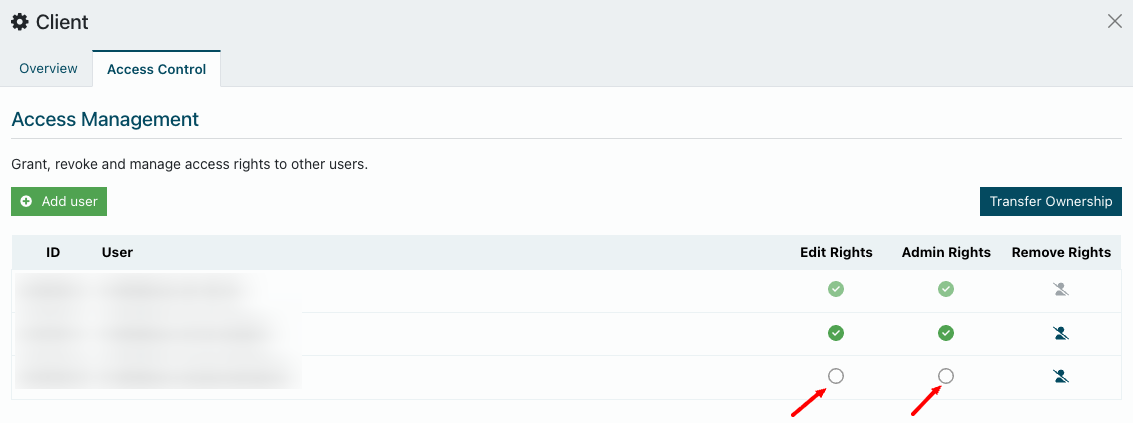
- The user now appears in the list.
- Click on " Edit Rights" and/or "Admin Rights " to assign the desired permissions.
User Permissions at the Channel Level
- Log in at suite.profitwiser.com
- Click " Configuration" in the menu on the left .
- Click on the account you want.
- You are now at the channel level. Right-click " Edit " next to the channel.
- Go to the Access Control tab and click Add User.
- Fill in the User ID Enter and click on Add.
- The user's User ID is displayed in the upper-right corner of the application.
- The user appears in the list.
- Click Edit Rights and/or Admin Rights to assign permissions to the user.
- Log in at suite.profitwiser.com
- Click " Configuration" in the menu on the left.
- Navigate to the desired account.
- Click on the corresponding channel.
- You are now at the platform level. Right-click " Edit " next to the platform.
- Go to the Access Control tab and click Add User.
- Fill in the User ID Enter and click on Add
- A user's User ID is displayed in the upper-right corner of the application.
- The user will appear in the list, and you can assign permissions via " Edit Rights" and/or "Admin Rights."
Transfer User Rights
It is possible to transfer the main administrator’s user rights to another user. When this happens, the current main administrator loses access to that level. As mentioned earlier, user rights can be set at different levels. In the example below, the rights are transferred at the account level.
- Log in at suite.profitwiser.com
- Click " Configuration" in the menu on the left .
- You'll see an overview of your accounts. Click " Edit" to the right of the account you want.
- A pop-up window will appear. Go to the Access Control tab and click Transfer Ownership.
- Fill in the User ID Enter and click on Transfer.
- The user's User ID is displayed in the upper-right corner of the application.
- After confirmation, the permissions have been successfully transferred to the selected user.
Delete Users
As mentioned earlier, user permissions can be set at various levels. In the example below, users are deleted at the account level.
- Log in at suite.profitwiser.com
- Click " Configuration" in the menu on the left .
- You'll see an overview of your accounts. Click " Edit" to the right of the account you want.
- A pop-up window will appear. Go to the Access Control tab and click the icon under " Remove Rights."